
Good to know: No copyright protection is circumvented
Music Streaming Services that can be recorded with Audials do not use any effective protection against recording and output unencrypted audio e.g. on the PC's sound card. Audials always only records such unencrypted audio data. According to US Copyright Law “No action may be brought … alleging infringement of copyright based on … distribution … or based on the noncommercial use by a consumer of such a … digital audio recording device”.
Music Streaming Services that can be recorded with Audials do not use any effective protection against recording and output unencrypted audio e.g. on the PC's sound card. Audials always only records such unencrypted audio data. According to US Copyright Law “No action may be brought … alleging infringement of copyright based on … distribution … or based on the noncommercial use by a consumer of such a … digital audio recording device”.
Table of Contents
There are many different ways of recording music online. And with the music recorders of Audials there’s never been a more convenient way of recording your favorite music. To show you just how easy, we have put together some detailed instructions on the following pages.

Record Music Streaming as MP3 with Audials Music
Audials Music lets you record your favorite songs from a wide variety of streaming platforms as MP3, WMA, AAC or in other audio formats. Audials just records the unencrypted signal which is outputted to the system sound device.
Moreover, you can convert your music for a variety of portable playback devices, such as Android Smartphones, Tablets, Apple iPhone, Apple iPad or Game Console, so that you’ll never have to leave home without your music.
Please note: Spotify download tools do not record from Spotify!
There are various music recorders for Windows going around the internet that claim to record MP3 files from Spotify. In reality, however, these tools simply download music videos from YouTube, extracting the audio and saving it as an MP3 file. This means that the music you are left with is not only bad quality, but is also often not even a studio recording. Quite often the audio is simply a recording made at a concert or even a cover version.
Why pay more for dodgy software?
Audials Music provides its users with lyrics, ID3 tags and album covers and boasts functions such as automatic song recognition and song separation, giving users a pleasant experience and more.
Audials Music is the only music recorder software to detect audio on a daily basis, enabling it to recognize music tracks and name them accordingly. This saves you the effort of having to post-edit tracks.
Audials Music is the most inexpensive tool with the most functions for music streaming recording
With Audials Music, you can record music from audio streams and save the tracks as MP3 files. This works with Spotify™ and many other sources of music. Audials lets you download music from any possible website.
We have compared Audials Music to other Amazon Music recorders. You can learn the results here.

Record Online Radios with Audials Radio
Audials Radio lets you make recordings from some 100,000 different Internet radio stations. You can specify the genre, request specific songs and albums or choose to have your personal wishlist available for community members to record. Then simply click the start button and in no time at all, Audials Radio will have recorded the first of many songs, albums and/or compilations on your hard drive.
Audials Radio is one of the most popular Player and Recorder for Internet Radios for Windows PC
Audials Radio fulfills your music wishes completely automatically with its one-of-a-kind technology. Only Audials Radio can monitor thousands of radio stations for your music wishes simultaneously. With your smartphone or any other device with Internet access, Audials even lets you enjoy your media straight from the cloud.
Internet Radio Apps for Android Smartphone & Tablet, as iOS App for Apple iPhone & iPad or for Windows 11/10 Tablet & Windows PC
Audials Play Apps as free Player and Recorder
Android
Smartphone & Tablet

iOS
Apple iPhone & iPad

Windows Free App
Computer & Tablet

Audials Play as pro edition with much more functions
Android Pro-App
Smartphone & Tablet
The Best Music Streaming Recorders and Internet Radio Recorders
Here you have on overview of the best applications to record music streaming radio.
| Audials One | Audials Music | Audials Radio | Audials Play | Screen Capture Free Online Screen Recorder | Movavi Screen Recorder | EaseUS RecExperts | Sidify Music Converter | Apowersoft Streaming Audio Recorder | |
|---|---|---|---|---|---|---|---|---|---|
| Operating system | Windows / Mac | Win / Mac | Win / Mac | Win / Android / iOS | Win / Mac | Win / Mac | Win / Mac | Win / Mac | Windows |
| Search for and listen to radio stations | ✔ | - | ✔ | ✔ | - | - | - | - | ✔ |
| Record radio | ✔ | - | ✔ | ✔ | ✔ | ✔ | ✔ | - | ✔ |
| Browse music streaming services | ✔ | ✔ | ✔ | ✔ | - | - | - | - | - |
| Record music streaming | ✔ | ✔ | - | - | ✔ | ✔ | ✔ | from Spotify | ✔ |
| Automatic songs separation | ✔ | ✔ | ✔ | ✔ | - | - | - | ✔ | ✔ |
| Automatic ID3 tagging | ✔ | ✔ | ✔ | ✔ | - | - | - | ✔ | ✔ |
| ,,Wish": automatic music recording | ✔ | ✔ | ✔ | - | - | - | - | - | - |
| "Bot": Get suggestions according to your musical taste | ✔ | - | - | - | - | - | - | - | - |
| Search for and listen to podcasts | ✔ | - | ✔ | ✔ | - | - | - | - | - |
| Record podcasts | ✔ | - | ✔ | ✔ | ✔ | ✔ | ✔ | - | - |
| Organize media on PC and mobile devices | ✔ | ✔ | ✔ | ✔ | - | - | - | - | - |
| Video streaming recording | ✔ | - | - | - | - | ✔ | ✔ | - | - |
| Price | $59.90 | $29.90 | $29.90 | free | free | $42.95 | $39.95* | $59.95* | $39.95* |
* yearly
Audials One is the Best Radio and Music Streaming Recorder
Comparing with other music and radio recorders, Audials One delivers the best performance, as it not only allows you to record from Spotify & Co. but also from radio stations. The many additional features make audio recording with Audials One particularly easy and convenient.
If you are only interested in radio or music streaming, there are Audials Radio and Audials Music for that purpose.
Try Audials One as a demo or buy it with a 14-day money-back guarantee
How do I use Audials Software as a Music Streaming Recorder?
Step 1: Install the Audials software and open Music Streaming
Set the desired recording format for your songs, for example, MP3, FLAC, AAC, M4A, OGG, WMA, or WAV.
Step 2: Prepare Audials for music streaming recording
Click on the desired streaming service and select the appropriate settings. Depending on the streaming service, various settings such as increased speed, Ultra HD/high-resolution quality are possible.
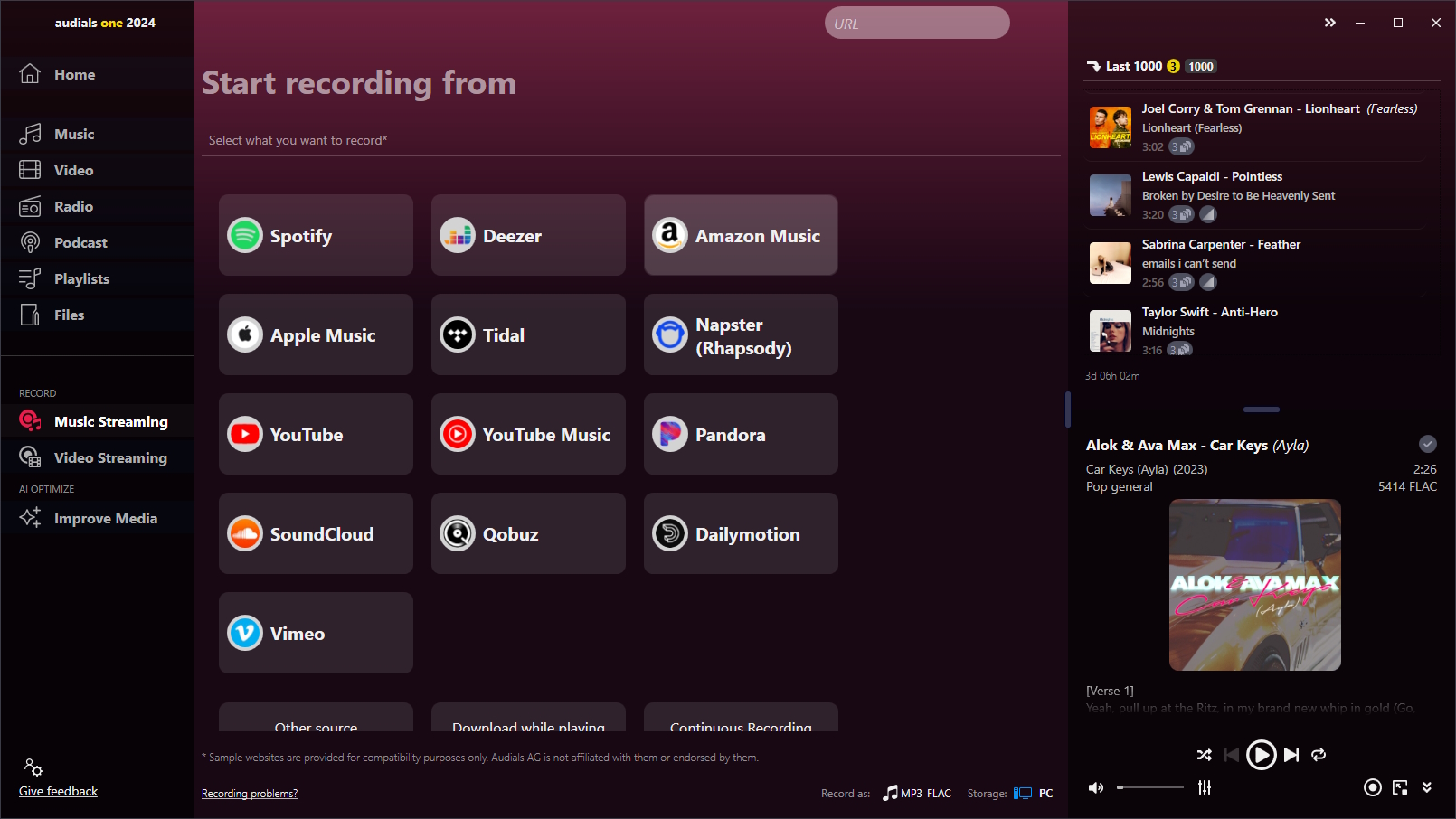
Step 3: Play the music.
As soon as music is played on the PC, Audials detects it and saves the music tracks as separate audio files.
How do I use the Audials Software as an Online Radio Recorder?
Step 1: Install the Audials software and open Radio
Set the desired recording format for your songs, for example, MP3, FLAC, AAC, M4A, OGG, WMA, or WAV.
Step 2: Prepare Audials for web radio recording
Select a country and/or a genre. Each radio station can be recorded manually by clicking on the recording symbol. Multiple stations can be recorded simultaneously.
Audials will record the music tracks individually and save them as separate, automatically ID3-tagged audio files on your PC.
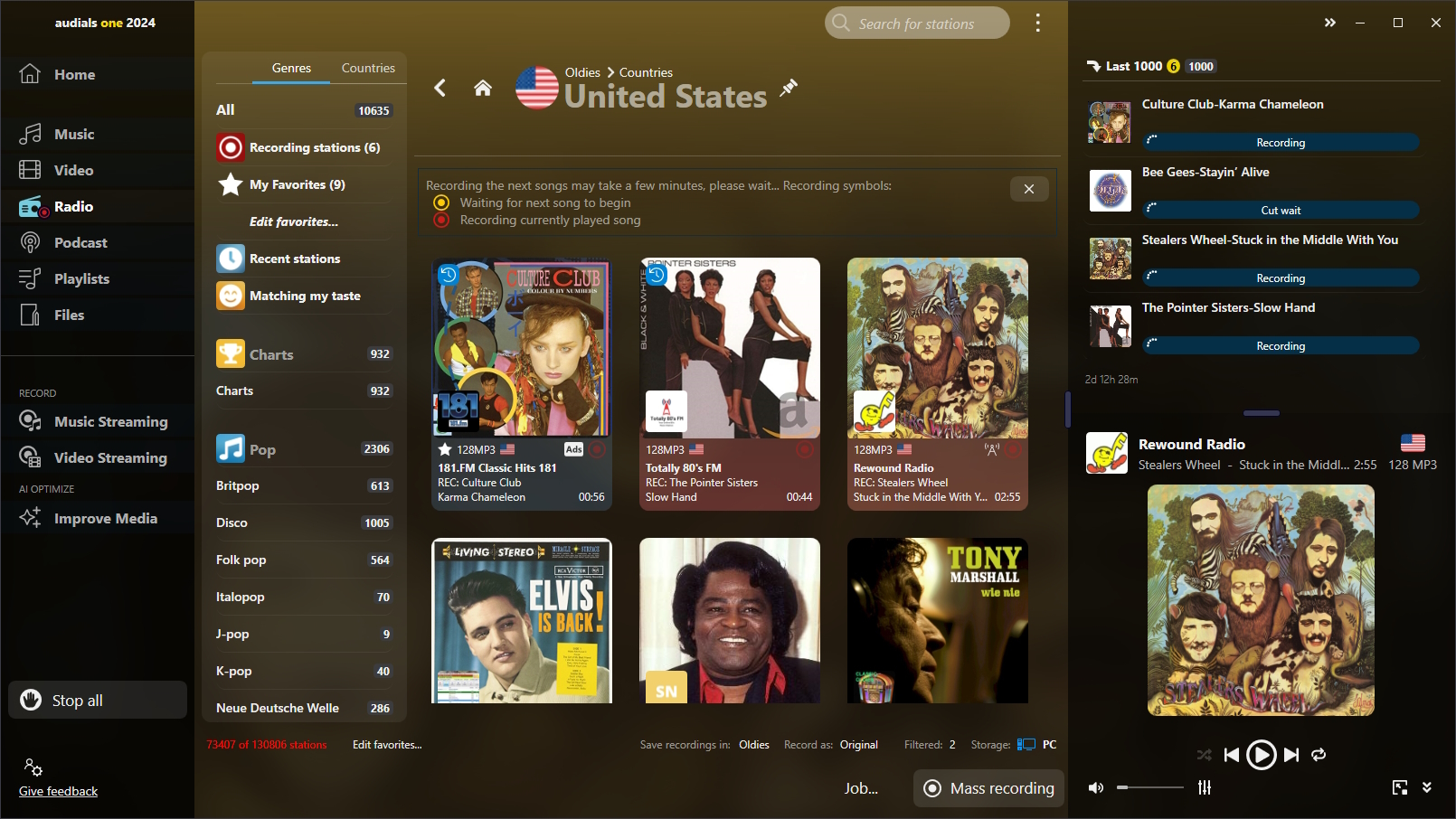
Tip: If you only want to record stations of a specific genre, it is recommended to enter the genre in Save recordings in before starting the recording in Audials. This makes tagging even more precise.
Statements
PC Welt
"Recommendation as Spotify recorder"
Top-Software-Reviews.com
"powerful"
about.com
"The quality of the generated music and video files was excellent"
Génération NT
"true companions for fans of series or films"
PCgo
"The conversion of [...] music is reliable and fast"
PC Utilities
"good all-round file conversion tool"
FAQ
What is Audials One?
Audials One is a versatile music streaming software that allows you to record music from streaming services like Spotify, Amazon Music, and Apple Music. It provides access to hundreds of thousands of internet radio stations and powerful music search features. Automatic ID3 tagging makes organizing your music library easier. Audials One also enables you to transfer your music to mobile devices and offers high-quality recording for an optimal listening experience. All features of Audials Music and Audials Radio are included in Audials One.
What is Audials Music?
Audials Music is a software that allows you to record music from various streaming services like Spotify, Amazon Music, and Apple Music and save it in high quality. You can save your favorite songs and playlists for offline listening, organize your music library, and create playlists.
What is Audials Radio?
Audials Radio is a software that provides access to hundreds of thousands of internet radio stations from various genres, regions, and languages. You can listen to your favorite stations, record radio broadcasts, and save them in high quality. The software also offers features for organizing your music library. Audials Radio allows you to transfer your recorded audio files to mobile devices for flexible listening on-the-go.