
Audials One is a powerful screen recorder that you can use to record any video playing on your PC. Be it series and films from all streaming services such as Netflix, Disney+ and Amazon Prime Video, Hulu or live streams such as Twitch.

Table of Contents
The Audials One Top Features
- Remove trailers, ads and recaps with the video editor
- Add subtitles for any video in any language
- Get high quality videos in HD, videos from Netflix even in Full HD
- Extra feature: Screen record Netflix, Amazon Prime Video, Disney+, Hulu, Paramount+ at 2x speed
- record from radio stations and music streaming services like Spotify and Amazon Music
Screen record any video content that you play back on your Windows PC
With Audials Movie or Audials One, you are provided with powerful and multi-award-winning ways to screen record movies or series from the most popular video streaming services:
Top video streaming platforms:
Record all video streaming services
The screen recorder captures all video streaming sources, even movies in HD quality while playing. Afterwards, all media is automatically converted and saved in perfect quality for PC, smartphone, Apple iPhone & iPad, Android tablets, and gaming consoles in the correct file format.
Try it out now with the demo to see the performance of Audials, and download the best screen recorder software without registration.
Easy to try without risk
Download the demo software of Audials One for free and without registration. Get to know the unlocked features after installation without any obligation. If you don't like it, you can uninstall the demo software without any residue.
Try Audials One for free as a demo or buy it with a 14-day money-back guarantee
Audials One is an easy-to-use video streaming recorder. Screen record and watch offline any movie and series you want. Find, listen to and record music streaming, radios and podcasts. More information about Audials One
You only need video streaming recording? Audials Movie will be ideal for you.
Get all the video functions as in Audials One, but without music streaming, radio, and podcasts. Try Audials Movie for free or buy it with a 14 day money-back guarantee. More information about Audials Movie
Free trial without any risk!
Install the demo and learn how easy it is to use Audials. The demo software shows you nearly the complete feature set with only a few limits. It's free and you need no registration to test it.
Full list of all video streaming services that the screen recorders Audials One and Audials Movie support
For these streaming services, convenient screen recording is available. To start screen recording, click the respective video streaming service tile in the Audials software.
Your streaming service is not listed here? Then start a screen recording in Audials.
Comparison of the best screen recorders
Here is an overview of software that is best for screen recording. Most free screen recorders only have the essential functions. And only a few tools can record at high speed.
| Audials One | Audials Movie | Screen Capture | Movavi Screen Recorder | VEED.IO | |
|---|---|---|---|---|---|
| Screen record all video streaming services listed on this page | ✔ | ✔ | ✔ | ✔ | ✔ |
| High-quality direct recording via GPU | ✔ | ✔ | - | - | - |
| Netflix in Full HD | ✔ | ✔ | - | - | ✔ |
| Record Netflix at 4x high speed | ✔ | ✔ | - | - | - |
| Record Amazon Video and Disney+ at 2x speed | ✔ | ✔ | - | - | - |
| Max. recording speed | up to 4x | up to 4x | 1x | 1x | 1x |
| Episodes separation | ✔ | ✔ | - | - | - |
| Subtitles | ✔ | ✔ | only rendered into video | only rendered into video | only rendered into video |
| Detect and remove ads in videos | ✔ | ✔ | - | - | - |
| Cutting videos | ✔ | ✔ | - | - | ✔ |
| Smartphone- & cloud- media manager | ✔ | ✔ | - | - | - |
| Record music streaming from Spotify, Amazon & Co. | ✔ | - | - | - | - |
| Finding music with the music bot | ✔ | - | - | - | - |
| Listen to 100,000 radio stations | ✔ | - | - | - | - |
| Listen to and save millions of podcasts | ✔ | - | - | - | - |
| Price | $59,90 | $39,90 | free | $42,95 * | free |
* per year
How do I use Audials?
Step 1: Install the Audials software and open "Video Streaming".
At the bottom of Audials, select the desired recording format for the video, such as MP4 (MPEG4), AVI, WMV, or 3GP.
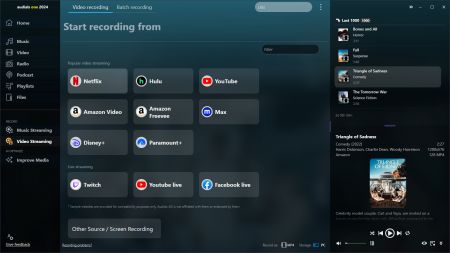
Step 2: Click on the streaming service that you want to record (e.g. click on the "Netflix" tile to start recording Netflix).
Depending on the streaming service, different settings may be available (2x speed, subtitles, Full HD...).
Step 3: Once you start playing the video, the screen recorder will automatically start recording it.
Afterwards, you will have a video file in the desired recording format on your PC.
Don't see the name of your streaming service in the screen recorder? Then click on "Screen Recording" and select the desired settings to record from your screen.
Statements
maketecheasier.com
"Audials One 2023 makes recording streaming video as easy as possible."
digitalconnectmag.com
"Audials One 2023 features an outstanding video editor that you can use to crop, cut and export parts of any recorded video."
Windowsreport
"We were simply impressed by this software and the fact that it’s optimized even for the new Windows 11 is definitely a great plus."
Techcrackblog.com
"Audials One is the only software application that offers users the freedom of recording their favorite movies and TV content as per their preferences."
Softpedia.com
"To be more precise, it basically records anything that can be played on your computer"
What do others say?
It's popular. It's amazing. It's successful.
And it’s Recognized. Audials is simply the best, most comprehensive digital entertainment software on the market - and that's not just our opinion:
FAQ
What is a screen recorder used for?
Screen recorders can be used for a variety of purposes, such as:
Presenting complex processes to others in a clear and visual manner.
Recording gameplay for fans of video games to capture the progress of their gameplay.
Recording video streaming services such as Netflix and Amazon Prime from the screen to watch movies and series without an internet connection.
Are there free screen recorders available?
Yes, there are free Screen Recorders available such as CamStudio for Windows or the online Screen Recorder Screen Capture.
What is Audials One?
Audials One is a Screen Recorder that can record video streaming from the screen on Windows and Mac. It is different from other screen recording programs due to its unique combination of features that make recording quick, easy and convenient.
- Audials One automatically detects the video being played and saves it without the need to stop recording manually. Depending on the video streaming service being used, Audials One can achieve recording speeds up to four times faster than normal, meaning that screen recording takes only 25% of the movie's duration.
- If the video streaming contains advertisements, such as with Paramount+ and Amazon Freevee, they will be automatically marked or removed during the recording process.
- Audials One also has a special search engine to find subtitles for movies and series in any language. It offers a variety of video formats to choose from, such as MP4 (MPEG4), MKV, WMV, AVI, MOV and more.
In addition, Audials One can also find, listen to, record and manage music streaming, radio and podcasts.
What is Audials Movie?
Audials Movie contains the same video recording features as Audials One, but without music streaming, radio and podcasts.
You could also be interested in:
How to screen record Netflix for free
How to save Netflix content on multiple devices
Learn about the best Netflix recorders
The best Amazon Prime Video downloader
The best Disney+ downloader tools
How to save Disney+ content to USB stick, SD card etc.
How to get subtitles for films and series